If you own a team licence you manage the seats yourself: free up a seat when someone leaves the company and assign it to someone new – no support ticket needed.
Where to find seat management
- Web app: Account → “Manage team licence” section
- iOS and Android: Account → Settings → “Manage team licence”
What the screen shows
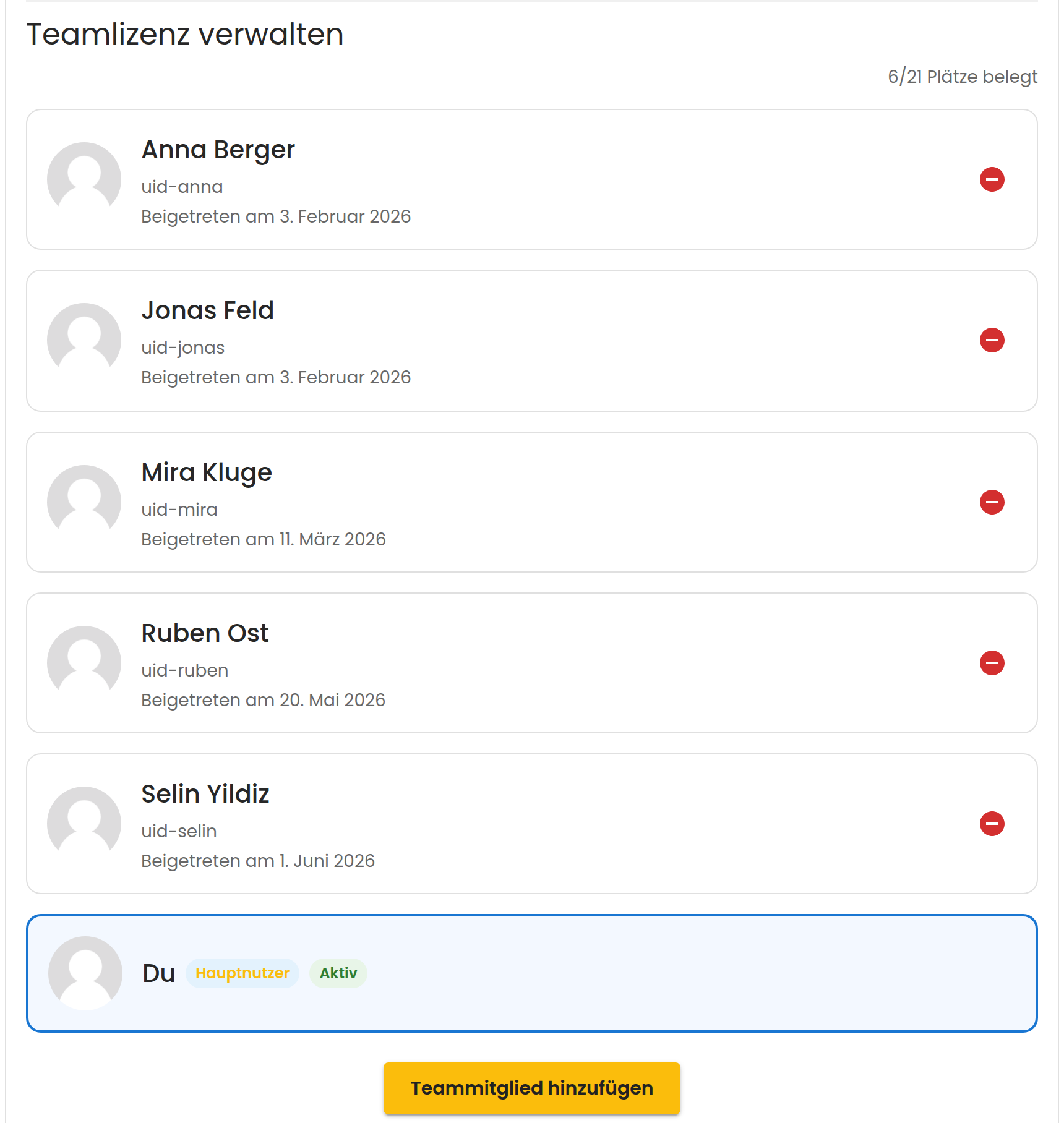
- How many seats are in use, top right – for example “6/21 seats used”
- Every member with their name and join date
- Yourself as the licence holder, marked as “main user”
- The “Add team member” button
Your own account occupies one of the seats. If 20 employees are to maintain the stock, you need 21 seats.
Assigning a seat
- The new person creates their own Smantry account first. An anonymous account cannot join a team licence.
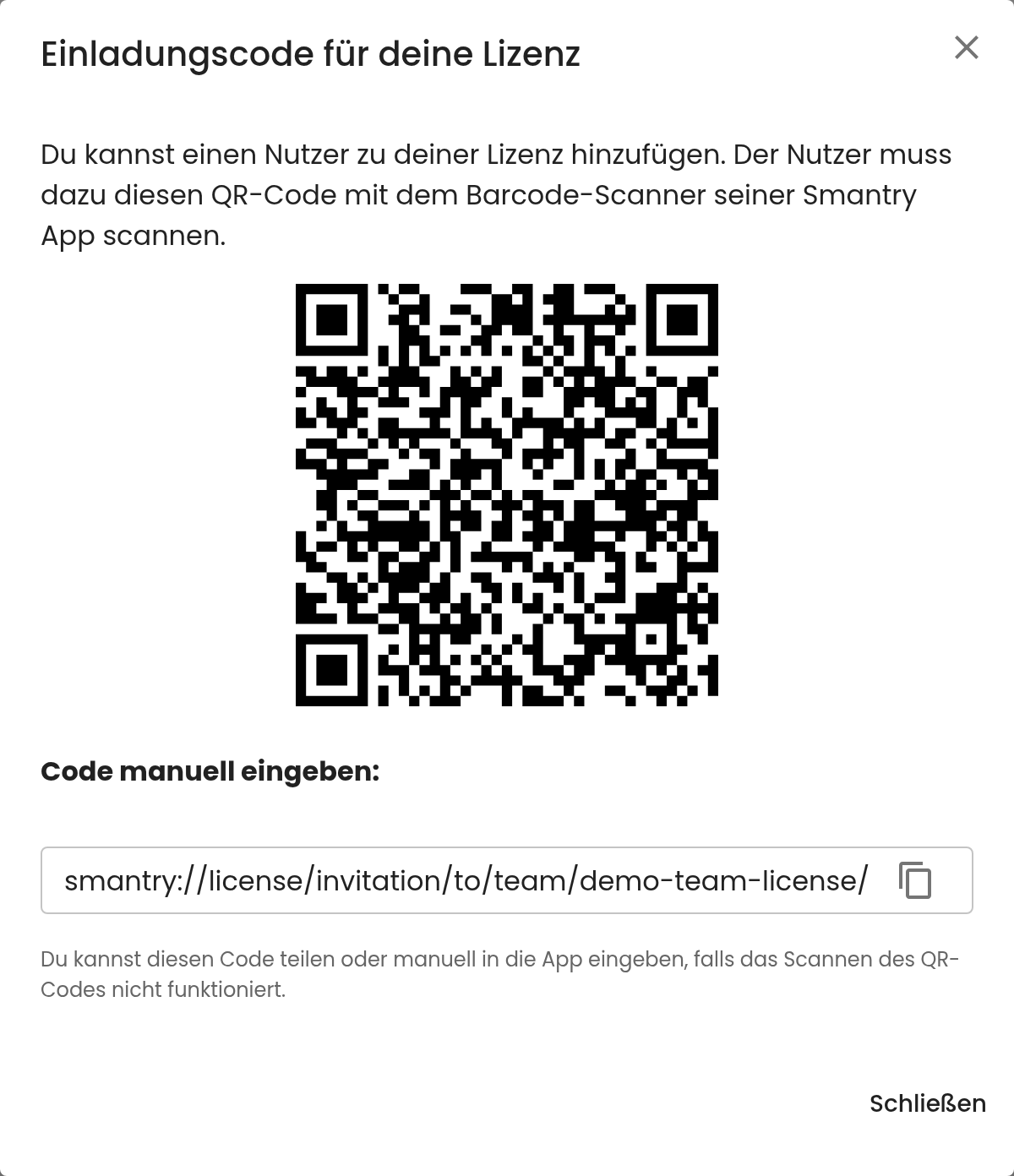
- Tap “Add team member”. Smantry shows a QR code and an invitation link.
- The person scans the QR code with the barcode scanner in their Smantry app – or opens the link. Premium access becomes active within a few minutes.
The invitation code changes daily. Smantry accepts today’s and yesterday’s code, but nothing older. Generate it when the onboarding actually happens.
Freeing up a seat
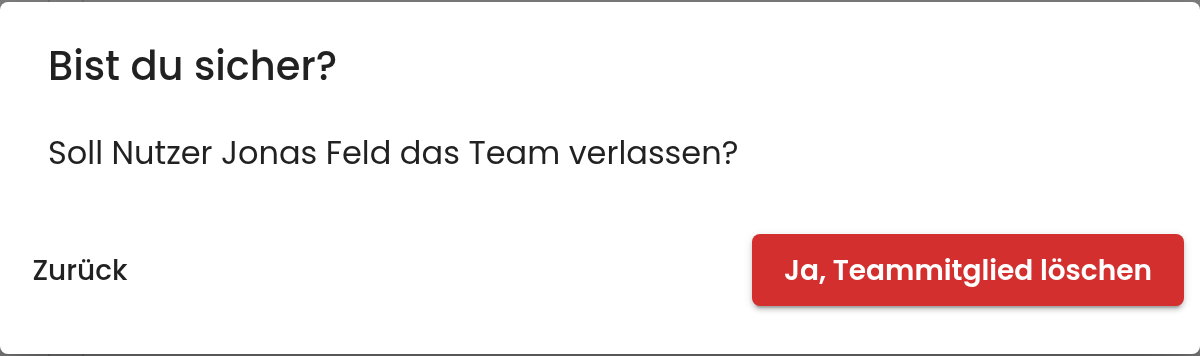
- Tap the red minus icon next to the person in the member list.
- Confirm the prompt.
The seat is free immediately and can be reassigned right away. The removed person loses premium access; their own data stays in their account.
Staff changes: always two steps
The team licence and the community are two different things. Anyone leaving the company has to be removed from both:
- Team licence: Account → Manage team licence → remove member. This ends the licence.
- Community: Community → Members → remove member. This ends access to your stock.
Only both steps together end the access completely.
This article explains the difference between community and team licence: Community, team licence and storage location
The licence holder
The licence holder cannot be removed from their own licence. For companies we therefore recommend registering the licence on a company account with a shared company email address rather than on a private person. That way the contract survives when that person leaves.
Frequently asked questions
- “No seat available”: every seat is taken. Free up a seat or contact support to book more.
- Members can also leave the licence themselves (“Leave team”), which frees the seat too.
- After joining, premium access is usually activated within a few minutes.