The continuous recording of food at home
The groceries at home can be digitally recorded with the Pantry App. The challenge is not the initial recording (which is often associated with spring cleaning and is fun), but the continuous maintenance of the inventory.
A barcode scanner significantly simplifies this task, as it allows the correct item to be quickly located. Scanning with a smartphone camera works fairly well, but an external scanner definitely has the advantage: its image sensor is optimized for reading barcodes, and additional lighting ensures optimal contrast when scanning in poor lighting conditions.
As a technical standard, it has been established that a barcode scanner is integrated as a keyboard. Thus, the barcode scanner reads the underlying identification number of the barcode and types it out as if on a keyboard.
The scanning process
If you have connected your scanner as a keyboard with your device (this can be a USB or Bluetooth scanner, whether on an iOS/Android/Windows device), then you can also use this scanner for the Pantry App.
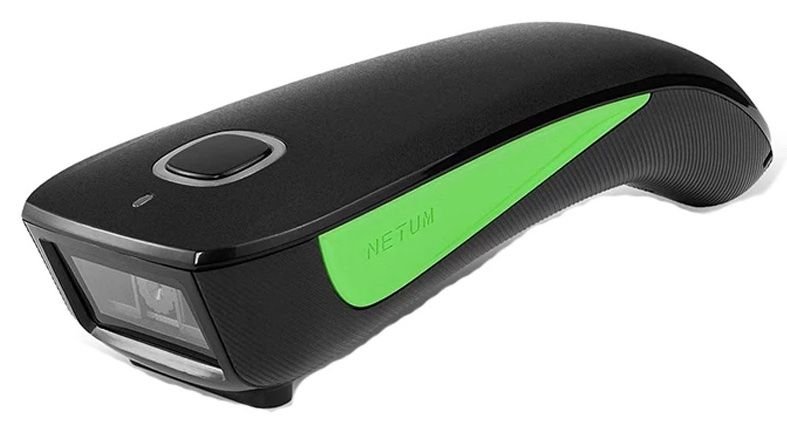
So, a special scanner, such as a NETUM Scanner from our store, is not required, even though we have already tested it with the app:
Shop with pantry-related itemsFor a limited time, we have set up a shop for a small selection of products. Our barcode scanners have been tested directly with the Pantry App. They are all wireless, and make scanning your items a breeze, even in poor lighting conditions. /**/Pantry AppMatthias Schmid
A Bluetooth scanner paired with a mobile phone has the huge advantage that the scanning process can be done completely wirelessly.
Wireless Netum C740 barcode scanner that can be connected to a mobile phone via Bluetooth.
Features in the Pantry App
In every screen where the blue barcode icon is available, scanning with an external scanner is also possible.
The blue barcode icon indicates on which screens scanning with an external scanner is also possible.
In the window that opens after the scanning process, there are three functions:
Display product information for the scanned item (name, contents, photo of the item), i.e., the product information from OpenFoodFacts. This feature is similar to most other barcode apps.
Items at the click of a button can be added to your inventory. Depending on which window you started the scanner from, you may still need to select the community and the storage location. Background: All items must be uniquely assigned to a storage location.
Listing of all products with this barcode in your inventory. Here you can directly adjust the inventory with +/- - so you can also quickly remove items that have been consumed.