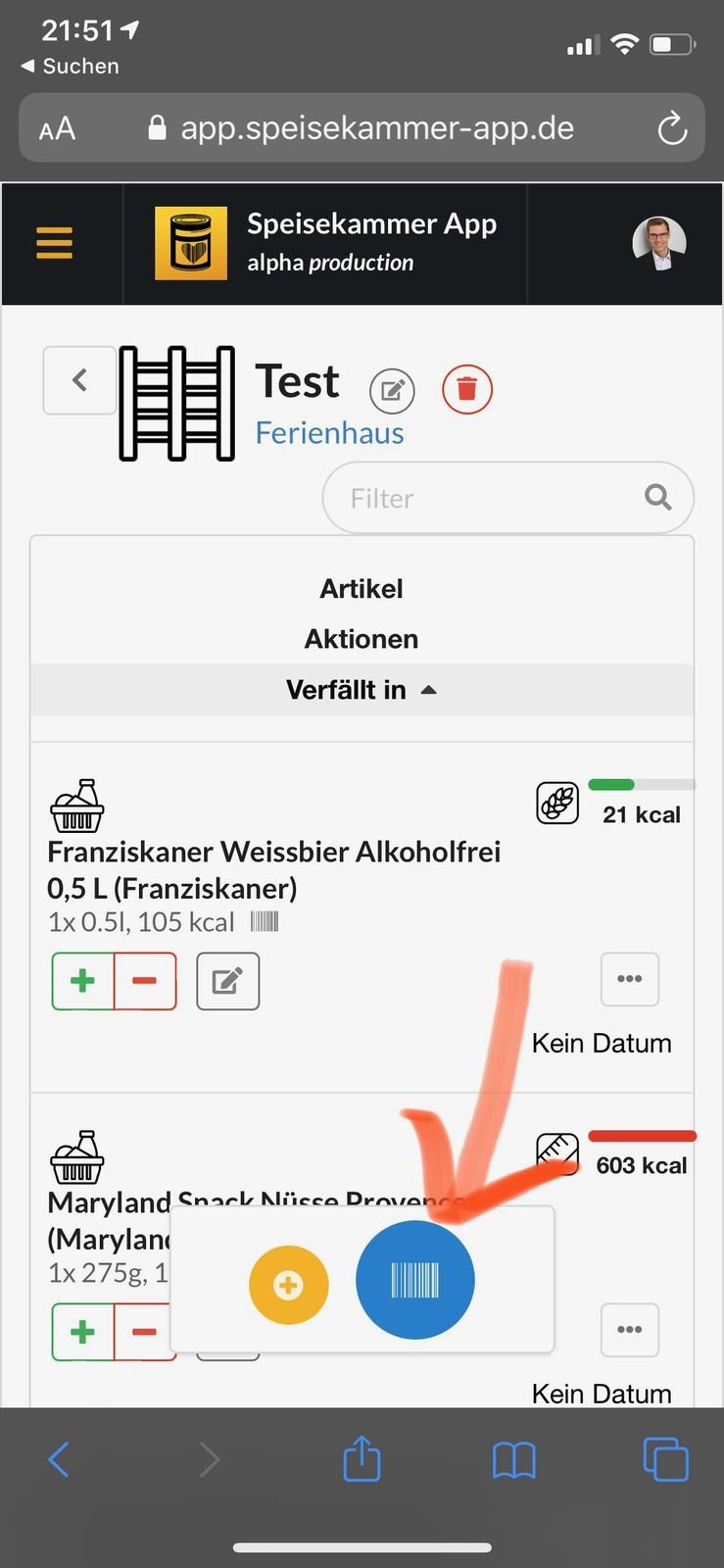
The web app uses camera access in the browser to scan barcodes. Unfortunately, there are limitations, it does not work in all browsers.
On Android, the barcode scanner has been tested with Chrome and Firefox. On iOS, it works exclusively with Safari, the browser from Apple. Nowadays, you can even add the web app as an icon on the home screen, and the barcode scanner still works (this wasn't always possible, as Apple lifted a restriction on web apps some time ago).
The process through the barcode scanning procedure
Click on the blue Scan button (if it does not appear, the device does not have a camera, or does not have access to it).
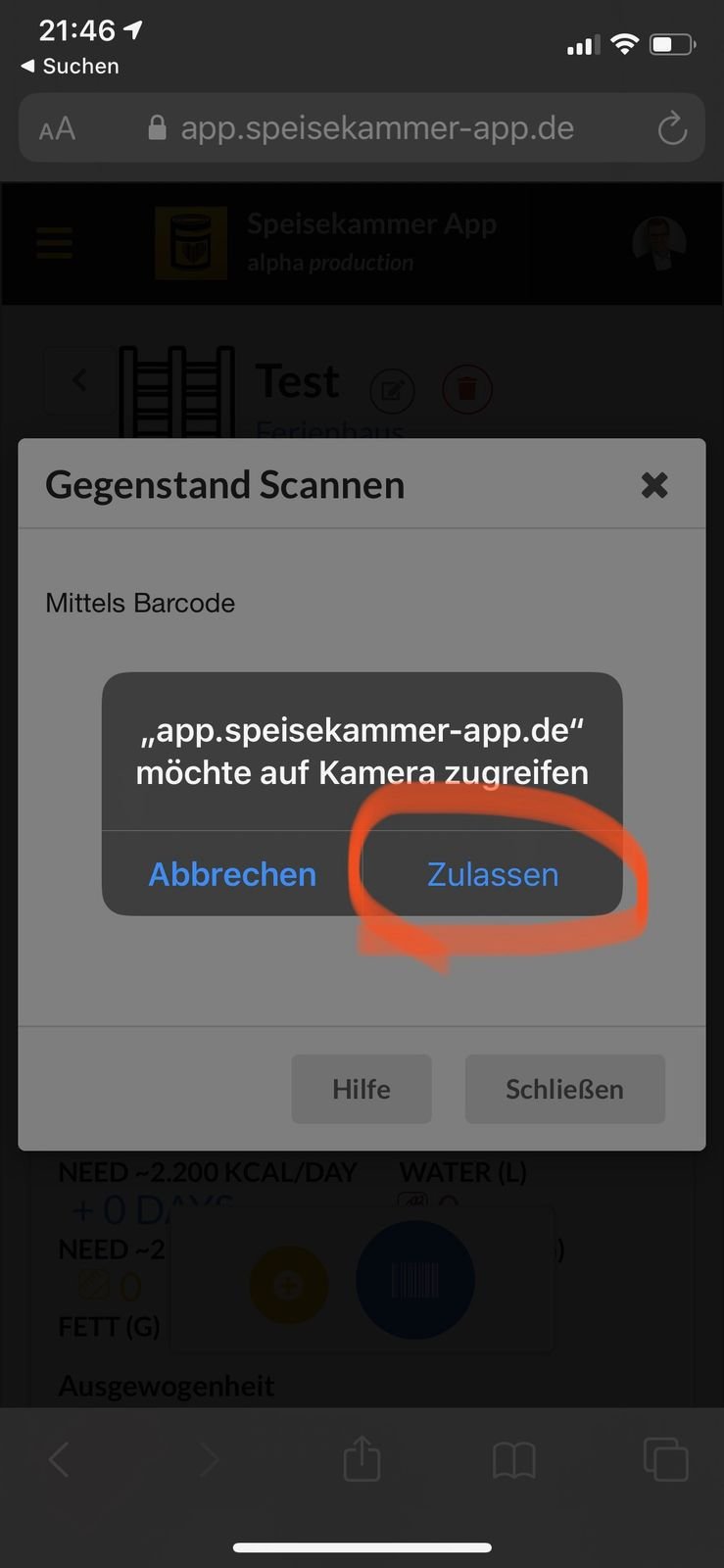
The app's access to the browser must be allowed:
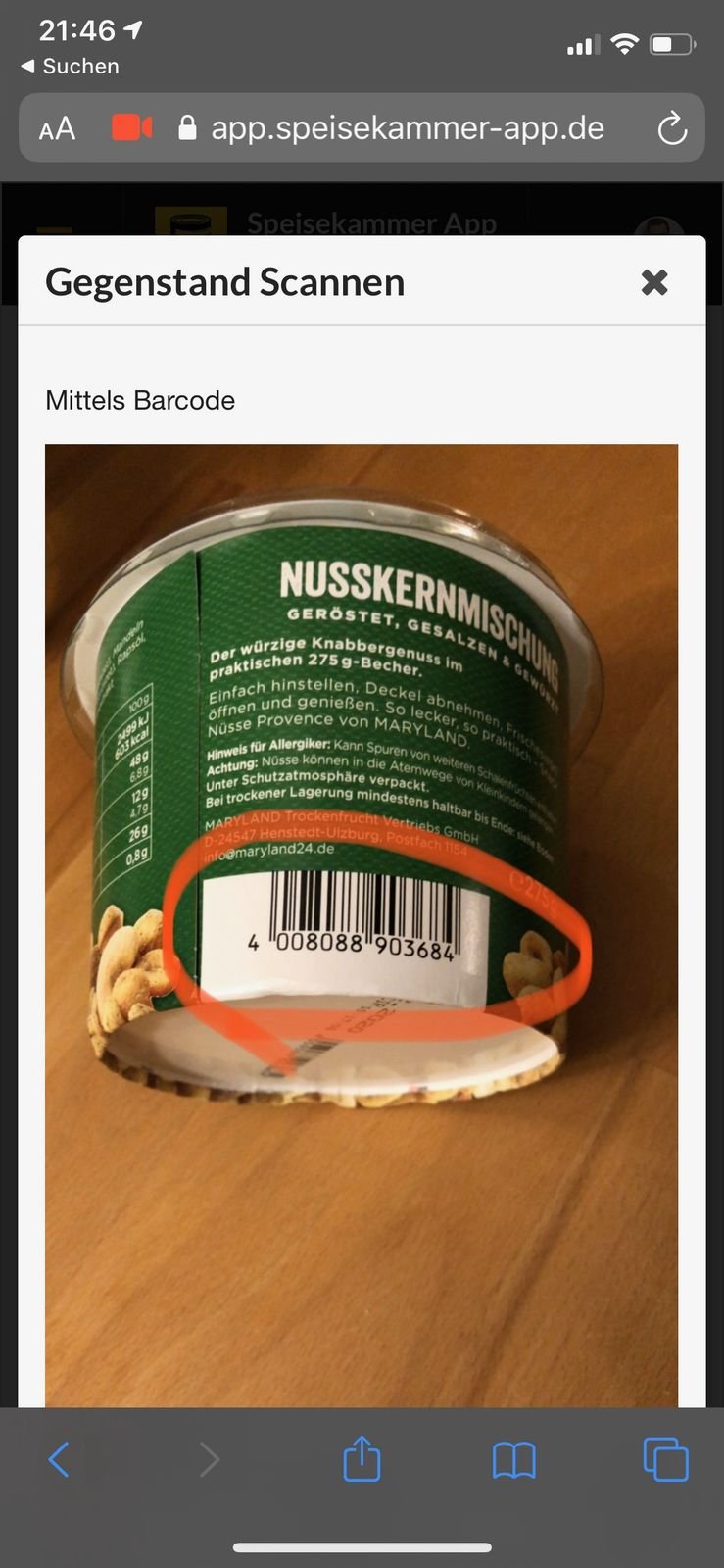
The camera image is displayed. If the scanner is correctly aligned with the barcode (barcode should fill about half of the camera image) and the image is sharp enough, it will be automatically recognized. Open barcode scanner via the blue buttonAllow camera accessHold the barcode up to the camera
If this product is not yet in stock (left), it can be created. If it is already in stock (right), you will automatically see the products in stock and can edit them directly from this screen. Of course, you can still create a new product with the same barcode.
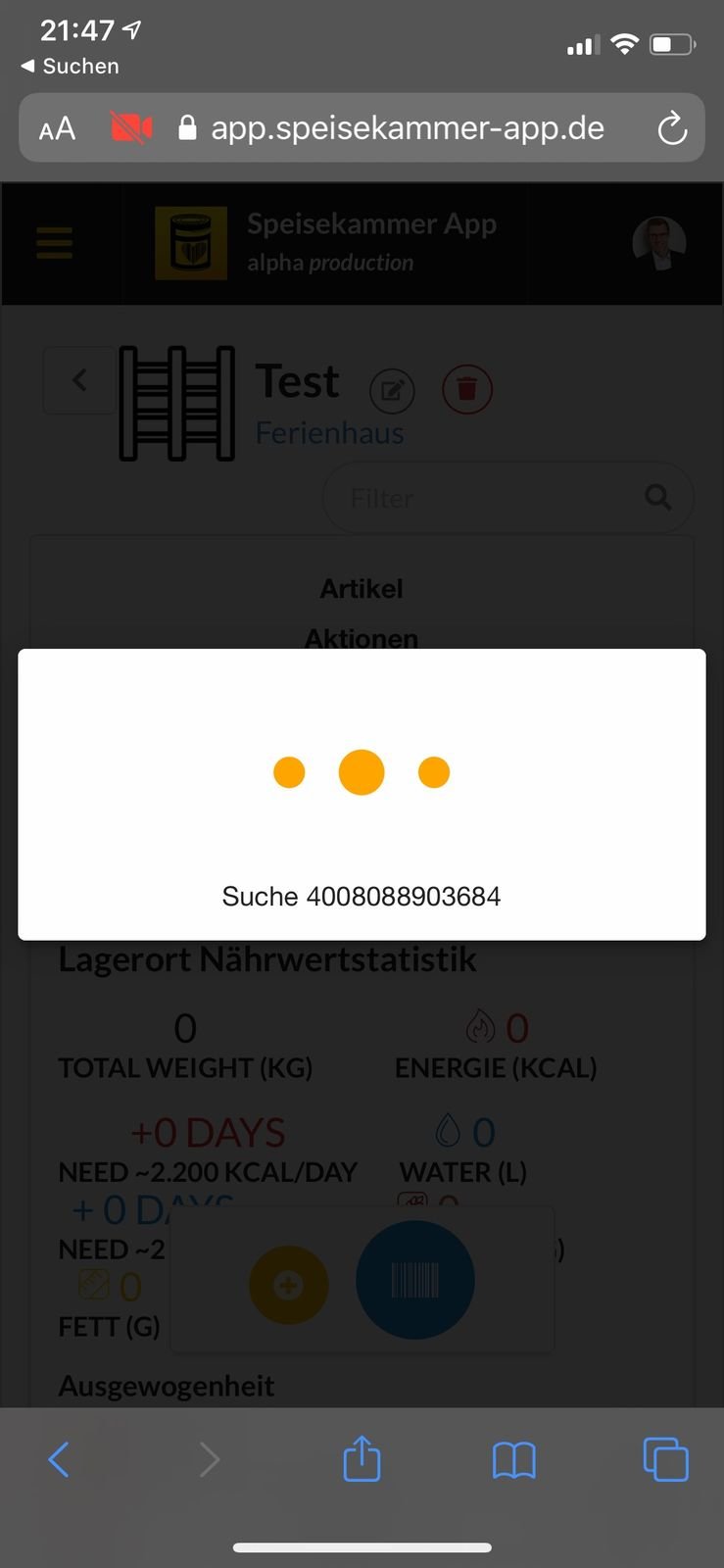
If you click on "Create Product", the product will be searched for at openfoodfacts.org, this may take a moment.
The item will be searched for in the personal pantry.
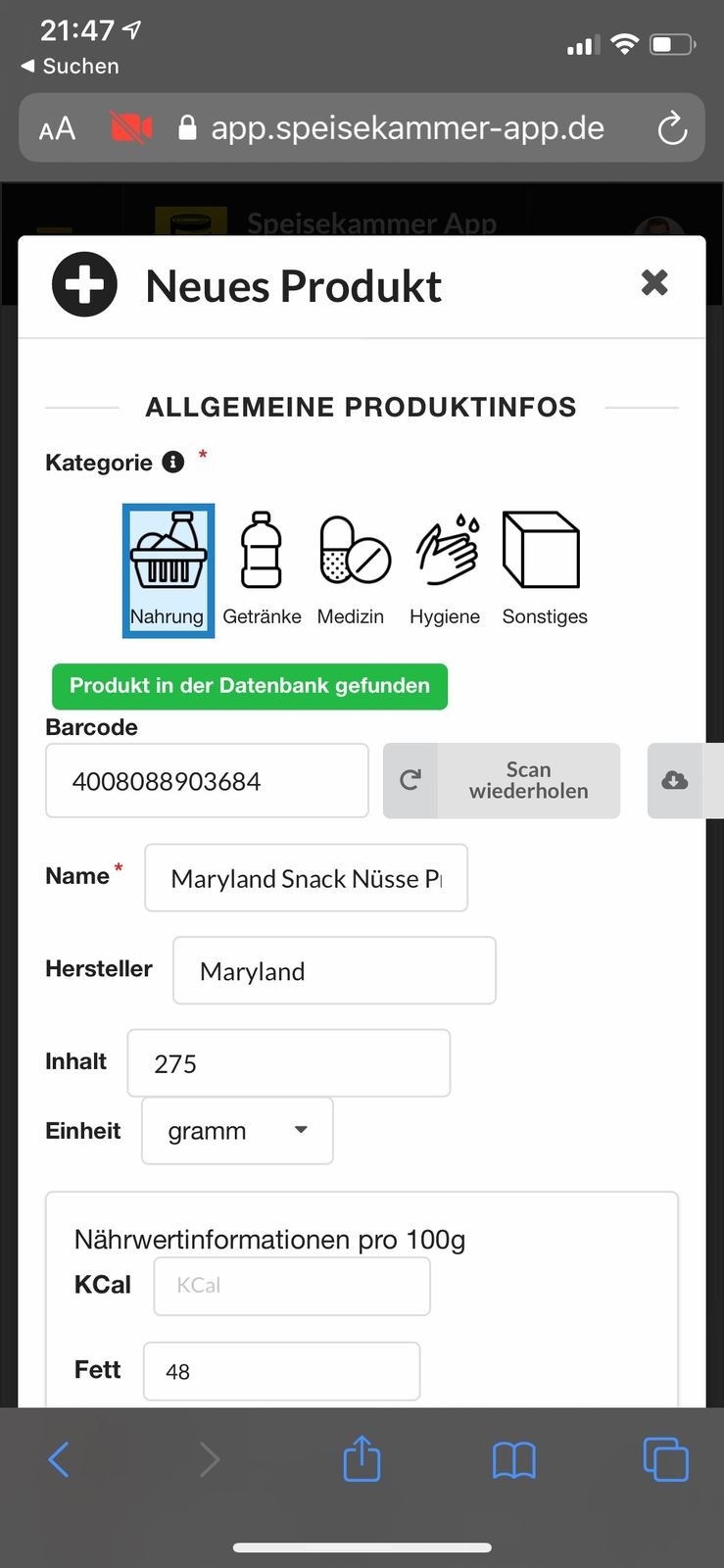
4. The article has been found and can be saved! If necessary, you can still correct the values, add the expiration date, enter the quantity of identical products, and make notes.
When you click on "Add Article", the article will be loaded from the global article database and can be created.
Do I really have to give permission for camera access every time?
If the regular confirmation for camera access is bothering you, you can also permanently enable camera access.
For iOS (Safari):
Click on the "AA" icon at the top left, then on Website Settings, and then on Camera - Allow.
For Android (Chrome):
Click on the lock icon at the top left, then on Website Settings, and then on Camera Access - Allow.